| --- |
| license: apache-2.0 |
| tags: |
| - agent |
| - coding-agent |
| - cli |
| - llm |
| - tool-use |
| --- |
| |
| > **This is a source mirror.** This Hugging Face repository is not a model checkpoint — it's a read-only mirror of the [`tailcallhq/forgecode`](https://github.com/tailcallhq/forgecode) GitHub repository, Tailcall's terminal coding agent (a single musl binary). It is hosted here for visibility on the Hub; the canonical repository, issue tracker, and pull requests all live on GitHub. Please file issues and contribute there, not here. |
|
|
| <h1 align="center">⚒️ Forge: AI-Enhanced Terminal Development Environment</h1> |
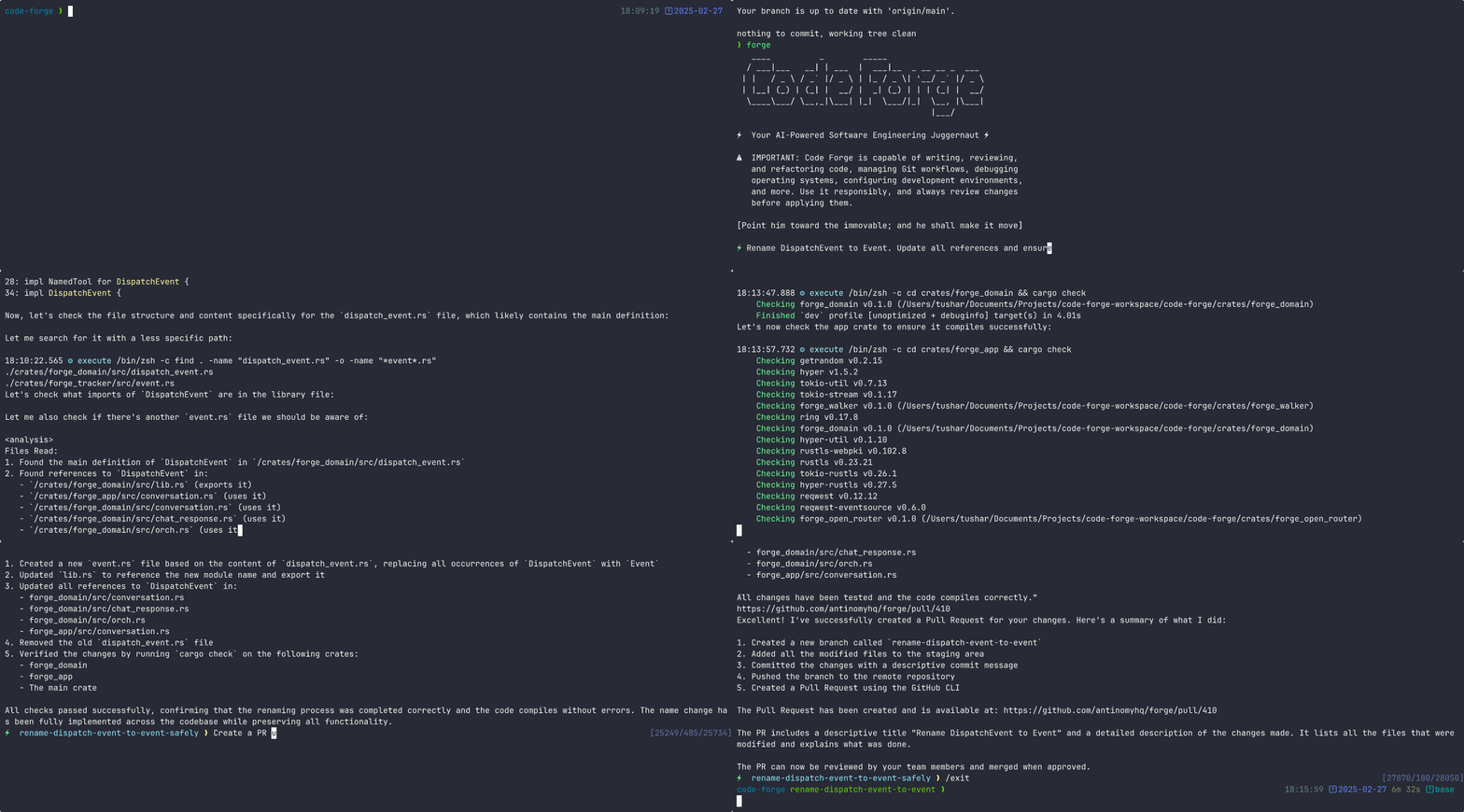
| <p align="center">A comprehensive coding agent that integrates AI capabilities with your development environment</p> |
|
|
| <p align="center"><code>curl -fsSL https://forgecode.dev/cli | sh</code></p> |
|
|
| [](https://github.com/tailcallhq/forgecode/actions) |
| [](https://github.com/tailcallhq/forgecode/releases) |
| [](https://discord.gg/kRZBPpkgwq) |
| [](https://cla-assistant.io/tailcallhq/forgecode) |
|
|
|  |
|
|
| --- |
|
|
| <details> |
| <summary><strong>Table of Contents</strong></summary> |
|
|
| - [Quickstart](#quickstart) |
| - [Usage Examples](#usage-examples) |
| - [Why Forge?](#why-forge) |
| - [How Forge Works: Three Modes](#how-forge-works-three-modes) |
| - [Interactive Mode (TUI)](#interactive-mode-tui) |
| - [One-Shot CLI Mode](#one-shot-cli-mode) |
| - [ZSH Plugin Mode (`:` prefix)](#zsh-plugin-mode--prefix) |
| - [ZSH Plugin: The `:` Prefix System](#zsh-plugin-the--prefix-system) |
| - [Agents](#agents) |
| - [Sending Prompts](#sending-prompts) |
| - [Attaching Files](#attaching-files) |
| - [Conversation Management](#conversation-management) |
| - [Git Integration](#git-integration) |
| - [Shell Command Tools](#shell-command-tools) |
| - [Session & Configuration](#session--configuration) |
| - [Skills](#skills) |
| - [Customizing Agent Behavior](#customizing-agent-behavior) |
| - [Semantic Search (Workspace)](#semantic-search-workspace) |
| - [Quick Reference: All `:` Commands](#quick-reference-all--commands) |
| - [Command-Line Options](#command-line-options) |
| - [Advanced Configuration](#advanced-configuration) |
| - [Provider Configuration](#provider-configuration) |
| - [Managing Provider Credentials](#managing-provider-credentials) |
| - [Deprecated: Environment Variables](#deprecated-environment-variables) |
| - [forge.yaml Configuration Options](#forgeyaml-configuration-options) |
| - [Environment Variables](#environment-variables) |
| - [MCP Configuration](#mcp-configuration) |
| - [Example Use Cases](#example-use-cases) |
| - [Usage in Multi-Agent Workflows](#usage-in-multi-agent-workflows) |
| - [Documentation](#documentation) |
| - [Community](#community) |
| - [Support Us](#support-us) |
|
|
| </details> |
|
|
| --- |
|
|
| ## Quickstart |
|
|
| To get started with Forge, run the command below: |
|
|
| ```bash |
| curl -fsSL https://forgecode.dev/cli | sh |
| ``` |
|
|
| On first run, Forge will guide you through setting up your AI provider credentials using the interactive login flow. Alternatively, you can configure providers beforehand: |
|
|
| ```bash |
| # Configure your provider credentials interactively |
| forge provider login |
| |
| # Then start Forge |
| forge |
| ``` |
| That's it! Forge is now ready to assist you with your development tasks. |
|
|
| ## Usage Examples |
|
|
| Forge can be used in different ways depending on your needs. Here are some common usage patterns: |
|
|
| <details> |
| <summary><strong>Code Understanding</strong></summary> |
|
|
| ``` |
| > Can you explain how the authentication system works in this codebase? |
| ``` |
|
|
| Forge will analyze your project's structure, identify authentication-related files, and provide a detailed explanation of the authentication flow, including the relationships between different components. |
|
|
| </details> |
|
|
| <details> |
| <summary><strong>Implementing New Features</strong></summary> |
|
|
| ``` |
| > I need to add a dark mode toggle to our React application. How should I approach this? |
| ``` |
|
|
| Forge will suggest the best approach based on your current codebase, explain the steps needed, and even scaffold the necessary components and styles for you. |
|
|
| </details> |
|
|
| <details> |
| <summary><strong>Debugging Assistance</strong></summary> |
|
|
| ``` |
| > I'm getting this error: "TypeError: Cannot read property 'map' of undefined". What might be causing it? |
| ``` |
|
|
| Forge will analyze the error, suggest potential causes based on your code, and propose different solutions to fix the issue. |
|
|
| </details> |
|
|
| <details> |
| <summary><strong>Code Reviews</strong></summary> |
|
|
| ``` |
| > Please review the code in src/components/UserProfile.js and suggest improvements |
| ``` |
|
|
| Forge will analyze the code, identify potential issues, and suggest improvements for readability, performance, security, and maintainability. |
|
|
| </details> |
|
|
| <details> |
| <summary><strong>Learning New Technologies</strong></summary> |
|
|
| ``` |
| > I want to integrate GraphQL into this Express application. Can you explain how to get started? |
| ``` |
|
|
| Forge will provide a tailored tutorial on integrating GraphQL with Express, using your specific project structure as context. |
|
|
| </details> |
|
|
| <details> |
| <summary><strong>Database Schema Design</strong></summary> |
|
|
| ``` |
| > I need to design a database schema for a blog with users, posts, comments, and categories |
| ``` |
|
|
| Forge will suggest an appropriate schema design, including tables/collections, relationships, indexes, and constraints based on your project's existing database technology. |
|
|
| </details> |
|
|
| <details> |
| <summary><strong>Refactoring Legacy Code</strong></summary> |
|
|
| ``` |
| > Help me refactor this class-based component to use React Hooks |
| ``` |
|
|
| Forge can help modernize your codebase by walking you through refactoring steps and implementing them with your approval. |
|
|
| </details> |
|
|
| <details> |
| <summary><strong>Git Operations</strong></summary> |
|
|
| ``` |
| > I need to merge branch 'feature/user-profile' into main but there are conflicts |
| ``` |
|
|
| Forge can guide you through resolving git conflicts, explaining the differences and suggesting the best way to reconcile them. |
|
|
| </details> |
|
|
| ## Why Forge? |
|
|
| Forge is designed for developers who want to enhance their workflow with AI assistance while maintaining full control over their development environment. |
|
|
| - **Zero configuration** - Just add your API key and you're ready to go |
| - **Seamless integration** - Works right in your terminal, where you already work |
| - **Multi-provider support** - Use OpenAI, Anthropic, or other LLM providers |
| - **Secure by design** - Restricted shell mode limits file system access and prevents unintended changes |
| - **Open-source** - Transparent, extensible, and community-driven |
|
|
| Forge helps you code faster, solve complex problems, and learn new technologies without leaving your terminal. |
|
|
| --- |
|
|
| ## How Forge Works: Three Modes |
|
|
| Forge has three distinct ways to use it. Understanding this distinction upfront will save you confusion. |
|
|
| ### Interactive Mode (TUI) |
|
|
| Running `forge` with no arguments starts the interactive terminal UI, a persistent session where you type prompts and the AI responds in a conversational loop. This is the primary way to do multi-step work. |
|
|
| ```bash |
| forge # Start a new interactive session |
| forge conversation resume <id> # Resume a specific saved conversation in interactive mode |
| forge --conversation-id <id> # Same: resume conversation by ID |
| forge --agent <agent-id> # Start interactive session with a specific agent |
| forge -C /path/to/project # Start in a specific directory |
| forge --sandbox experiment-name # Create an isolated git worktree + branch, then start there |
| ``` |
|
|
| Once inside interactive mode, type your prompt and press Enter. Forge reads files, writes patches, runs commands, and maintains context across the whole session. |
|
|
| ### One-Shot CLI Mode |
|
|
| Pass `-p` (or `--prompt`) to run a single prompt and exit. Forge does the work and returns to your shell. Useful for scripts, piping output, or quick tasks. |
|
|
| ```bash |
| forge -p "Explain the purpose of src/main.rs" |
| forge -p "Add error handling to the parse() function in lib.rs" |
| echo "What does this do?" | forge # Pipe input as the prompt |
| forge commit # Generate an AI commit message and commit (exits when done) |
| forge commit --preview # Generate commit message, print it, then exit |
| forge suggest "find large log files" # Translate natural language to a shell command, then exit |
| ``` |
|
|
| > **Note:** `forge conversation resume <id>` opens the interactive TUI. It does **not** just print a message and exit. If you run it and see the cursor waiting, you are inside the interactive session. Type your prompt or press `Ctrl+C` to exit. |
|
|
| ### ZSH Plugin Mode (`:` prefix) |
|
|
| Install the ZSH plugin once with `forge setup`, then use `:` commands directly at your shell prompt without ever typing `forge`. This is the fastest mode for day-to-day development: send prompts, switch conversations, commit, and suggest commands without leaving your shell. |
|
|
| ```zsh |
| : refactor the auth module # Send a prompt to the active agent |
| :commit # AI-powered git commit |
| :suggest "find large log files" # Translate description → shell command in your buffer |
| :conversation # Browse saved conversations with interactive picker |
| ``` |
|
|
| See the full [ZSH Plugin reference below](#zsh-plugin-the--prefix-system) for all commands and aliases. |
|
|
| --- |
|
|
| ## ZSH Plugin: The `:` Prefix System |
|
|
| When you install the ZSH plugin (`forge setup`), you get a `:` prefix command system at your shell prompt. This is the fastest way to use Forge during normal development; you never leave your shell. |
|
|
| **How it works:** Lines starting with `:` are intercepted before the shell sees them and routed to Forge. Everything else runs normally. |
|
|
| ```zsh |
| : <prompt> # Send a prompt to the active agent |
| :sage <prompt> # Send a prompt to a specific agent by name (sage, muse, forge, or any custom agent) |
| :agent <name> # Switch the active agent; opens interactive picker if no name given |
| ``` |
|
|
| ### Agents |
|
|
| Forge ships with three built-in agents, each with a different role: |
|
|
| | Agent | Alias | Purpose | Modifies files? | |
| |---|---|---|---| |
| | `forge` | (default) | Implementation: builds features, fixes bugs, and runs tests | Yes | |
| | `sage` | `:ask` | Research: maps architecture, traces data flow, and reads code | No | |
| | `muse` | `:plan` | Planning: analyzes structure and writes implementation plans to `plans/` | No | |
|
|
| ### Sending Prompts |
|
|
| ```zsh |
| : refactor the auth module to use the new middleware |
| :sage how does the caching layer work? # sage = read-only research agent |
| :muse design a deployment strategy # muse = planning agent (writes to plans/) |
| :ask how does X work? # alias for :sage |
| :plan create a migration plan # alias for :muse |
| ``` |
|
|
| The agent context persists. Typing `:sage` alone (no prompt text) switches the active agent to sage for all subsequent `: <prompt>` commands. |
|
|
| ### Attaching Files |
|
|
| Type `@` in a prompt, then press Tab to fuzzy-search and select files. The path is inserted as `@[filename]` and attached as context to the AI. |
|
|
| ```zsh |
| : review this code @[src/auth.rs] @[tests/auth_test.rs] |
| ``` |
|
|
| ### Conversation Management |
|
|
| Forge saves every conversation. You can switch between them like switching directories. |
|
|
| ```zsh |
| :new # Start a fresh conversation (saves current for :conversation -) |
| :new <initial prompt> # Start a new conversation and immediately send a prompt |
| :conversation # Open interactive picker: browse and switch conversations with preview |
| :conversation <id> # Switch directly to a conversation by ID |
| :conversation - # Toggle between current and previous conversation (like cd -) |
| :clone # Branch the current conversation (try a different direction) |
| :clone <id> # Clone a specific conversation by ID |
| :rename <name> # Rename the current conversation |
| :conversation-rename # Rename a conversation via interactive picker |
| :retry # Retry the last prompt (useful if the AI misunderstood) |
| :copy # Copy the last AI response to clipboard as markdown |
| :dump # Export conversation as JSON |
| :dump html # Export conversation as formatted HTML |
| :compact # Manually compact context to free up token budget |
| ``` |
|
|
| ### Git Integration |
|
|
| ```zsh |
| :commit # AI reads your diff, writes a commit message, and commits immediately |
| :commit <context> # Same, but pass extra context: :commit fix typo in readme |
| :commit-preview # AI generates the message and puts "git commit -m '...'" in your buffer |
| # so you can review/edit the message before pressing Enter |
| ``` |
|
|
| ### Shell Command Tools |
|
|
| ```zsh |
| :suggest <description> # Translate natural language to a shell command and put it in your buffer |
| :edit # Open $EDITOR to compose a complex multi-line prompt, then send it |
| ``` |
|
|
| ### Session & Configuration |
|
|
| Some commands change settings for the current session only. Others persist to your config file (`~/forge/.forge.toml`). The distinction matters: |
|
|
| ```zsh |
| # Session-only (reset when you close the terminal; not saved to config) |
| :model <model-id> # Change model for this session only |
| :reasoning-effort <level> # Set reasoning effort: none/minimal/low/medium/high/xhigh/max |
| :agent <id> # Switch active agent for this session |
| |
| # Persistent (saved to config file) |
| :config-model <model-id> # Set default model globally (alias: :cm) |
| :config-provider # Switch provider globally (alias: :provider, :p) |
| :config-reasoning-effort <lvl> # Set default reasoning effort globally (alias: :cre) |
| :config-commit-model <id> # Set model used for :commit (alias: :ccm) |
| :config-suggest-model <id> # Set model used for :suggest (alias: :csm) |
| :config-reload # Reset session overrides back to global config (alias: :cr) |
| |
| # View & edit config |
| :info # Show current session info (model, agent, conversation ID) |
| :config # Display effective resolved configuration in TOML format |
| :config-edit # Open config file in $EDITOR (alias: :ce) |
| :tools # List available tools for the current agent |
| :skill # List available skills |
| ``` |
|
|
| ### Skills |
|
|
| Skills are reusable workflows the AI can invoke as tools. Forge ships three built-in skills: |
|
|
| - **`create-skill`**: scaffold a new custom skill |
| - **`execute-plan`**: execute a plan file from `plans/` |
| - **`github-pr-description`**: generate a PR description from your diff |
|
|
| Use `:skill` to list available skills. The AI invokes them automatically when relevant, or you can ask explicitly: `: generate a PR description using the github-pr-description skill`. |
|
|
| **Custom skills** live in `SKILL.md` files with YAML front-matter. Precedence (highest first): |
|
|
| | Location | Path | Scope | |
| |---|---|---| |
| | Project-local | `.forge/skills/<name>/SKILL.md` | This project only | |
| | Global | `~/forge/skills/<name>/SKILL.md` | All projects | |
| | Built-in | Embedded in binary | Always available | |
|
|
| Project-local skills override global ones, which override built-in ones. To scaffold a new skill, ask: `: create a new skill`. |
|
|
| ### Customizing Agent Behavior |
|
|
| **`AGENTS.md`:** Create this file in your project root (or `~/forge/AGENTS.md` globally) to give all agents persistent instructions such as coding conventions, commit message style, and things to avoid. Forge reads it automatically at the start of every conversation. |
|
|
| **Custom agents:** Place a `.md` file with YAML front-matter in `.forge/agents/` (project) or `~/forge/agents/` (global) to define additional agents with their own models, tools, and system prompts. Project-local agents override global ones. The built-in agent files in `crates/forge_repo/src/agents/` are good examples of the format. |
|
|
| **Custom commands:** Place YAML files in `.forge/commands/` (project) or `~/forge/commands/` (global) to define shortcut commands available via `:commandname`. Commands can also be defined inline in `forge.yaml` under the `commands:` key. |
|
|
| ### Semantic Search (Workspace) |
|
|
| ```zsh |
| :sync # Index your codebase for semantic search |
| :workspace-init # Initialize workspace for indexing |
| :workspace-status # Show indexing status |
| :workspace-info # Show workspace details |
| ``` |
|
|
| After running `:sync`, the AI can search your codebase by meaning rather than exact text matches. Indexing sends file content to the workspace server, which defaults to `https://api.forgecode.dev`. Set `FORGE_WORKSPACE_SERVER_URL` to override this if self-hosting. |
|
|
| ### Quick Reference: All `:` Commands |
|
|
|
|
| | Command | Alias | What it does | |
| |---|---|---| |
| | `: <prompt>` | | Send prompt to active agent | |
| | `:new` | `:n` | Start new conversation | |
| | `:conversation` | `:c` | Browse/switch conversations (interactive picker) | |
| | `:conversation -` | | Toggle to previous conversation | |
| | `:clone` | | Branch current conversation | |
| | `:rename <name>` | `:rn` | Rename current conversation | |
| | `:conversation-rename` | | Rename conversation (interactive picker) | |
| | `:retry` | `:r` | Retry last prompt | |
| | `:copy` | | Copy last response to clipboard | |
| | `:dump` | `:d` | Export conversation as JSON | |
| | `:compact` | | Compact context | |
| | `:commit` | | AI commit (immediate) | |
| | `:commit-preview` | | AI commit (review first) | |
| | `:suggest <desc>` | `:s` | Translate natural language to command | |
| | `:edit` | `:ed` | Compose prompt in $EDITOR | |
| | `:sage <prompt>` | `:ask` | Q&A / code understanding agent | |
| | `:muse <prompt>` | `:plan` | Planning agent | |
| | `:agent <name>` | `:a` | Switch active agent (interactive picker if no name given) | |
| | `:model <id>` | `:m` | Set model for this session only | |
| | `:config-model <id>` | `:cm` | Set default model (persistent) | |
| | `:reasoning-effort <lvl>` | `:re` | Set reasoning effort for session | |
| | `:config-reload` | `:cr` | Reset session overrides to global config | |
| | `:info` | `:i` | Show session info | |
| | `:sync` | `:workspace-sync` | Index codebase for semantic search | |
| | `:tools` | `:t` | List available tools | |
| | `:skill` | | List available skills | |
| | `:login` | `:provider-login` | Login to a provider | |
| | `:logout` | | Logout from a provider | |
| | `:keyboard-shortcuts` | `:kb` | Show keyboard shortcuts | |
| | `:doctor` | | Run shell environment diagnostics | |
|
|
| --- |
|
|
| ## Command-Line Options |
|
|
| Here's a quick reference of Forge's command-line options: |
|
|
| | Option | Description | |
| | ----------------------------------- | ------------------------------------------------------------------------ | |
| | `-p, --prompt <PROMPT>` | Direct prompt to process without entering interactive mode | |
| | `-e, --event <EVENT>` | Dispatch an event to the workflow in JSON format | |
| | `--conversation <CONVERSATION>` | Path to a JSON file containing the conversation to execute | |
| | `--conversation-id <ID>` | Resume or continue an existing conversation by ID | |
| | `--agent <AGENT>` | Agent ID to use for this session | |
| | `-C, --directory <DIR>` | Change to this directory before starting | |
| | `--sandbox <NAME>` | Create an isolated git worktree + branch for safe experimentation | |
| | `--verbose` | Enable verbose logging output | |
| | `-h, --help` | Print help information | |
| | `-V, --version` | Print version | |
|
|
| ### Subcommands |
|
|
| ```bash |
| # Conversations |
| forge conversation list # List all saved conversations |
| forge conversation resume <id> # Resume a conversation in interactive mode |
| forge conversation new # Create a new conversation ID (prints it) |
| forge conversation dump <id> # Export conversation as JSON |
| forge conversation compact <id> # Compact conversation context |
| forge conversation retry <id> # Retry last message |
| forge conversation clone <id> # Clone a conversation |
| forge conversation rename <id> <name> # Rename a conversation |
| forge conversation delete <id> # Delete a conversation permanently |
| forge conversation info <id> # Show conversation details |
| forge conversation stats <id> # Show token usage statistics |
| forge conversation show <id> # Show last assistant message |
| |
| # Commits |
| forge commit # Generate AI commit message and commit |
| forge commit --preview # Generate commit message only (prints it) |
| forge commit fix the auth bug # Pass extra context for the commit message |
| |
| # Shell command suggestion |
| forge suggest "list files by size" # Translate description to a shell command |
| |
| # Providers |
| forge provider login # Add or update provider credentials (interactive) |
| forge provider logout # Remove provider credentials |
| forge list provider # List supported providers |
| |
| # Models & agents |
| forge list model # List available models |
| forge list agent # List available agents |
| |
| # Workspace / semantic search |
| forge workspace sync # Index current directory for semantic search |
| forge workspace init # Initialize workspace |
| forge workspace status # Show indexing status |
| forge workspace query <text> # Query the semantic index |
| |
| # MCP servers |
| forge mcp list # List configured MCP servers |
| forge mcp import # Add a server from JSON |
| forge mcp show # Show server configuration |
| forge mcp remove # Remove a server |
| forge mcp reload # Reload all servers and rebuild caches |
| |
| # Other |
| forge info # Show config, active model, environment |
| forge list tool --agent <id> # List tools for a specific agent |
| forge doctor # Run shell environment diagnostics |
| forge update # Update forge to the latest version |
| forge setup # Install ZSH plugin (updates .zshrc) |
| ``` |
|
|
| ## Advanced Configuration |
|
|
| ### Provider Configuration |
|
|
| Forge supports multiple AI providers. The recommended way to configure providers is using the interactive login command: |
|
|
| ```bash |
| forge provider login |
| ``` |
|
|
| This will: |
|
|
| 1. Show you a list of available providers |
| 2. Guide you through entering the required credentials |
|
|
| #### Managing Provider Credentials |
|
|
| ```bash |
| # Login to a provider (add or update credentials) |
| forge provider login |
| |
| # Remove provider credentials |
| forge provider logout |
| |
| # List supported providers |
| forge provider list |
| ``` |
|
|
| #### Deprecated: Environment Variables |
|
|
| > **⚠️ DEPRECATED**: Using `.env` files for provider configuration is deprecated and will be removed in a future version. Please use `forge provider login` instead. |
|
|
| For backward compatibility, Forge still supports environment variables. On first run, any credentials found in environment variables will be automatically migrated to file-based storage. |
|
|
| <details> |
| <summary><strong>Legacy Environment Variable Setup (Deprecated)</strong></summary> |
|
|
| <details> |
| <summary><strong>OpenRouter</strong></summary> |
|
|
| ```bash |
| # .env |
| OPENROUTER_API_KEY=<your_openrouter_api_key> |
| ``` |
|
|
| </details> |
|
|
| <details> |
| <summary><strong>Requesty</strong></summary> |
|
|
| ```bash |
| # .env |
| REQUESTY_API_KEY=<your_requesty_api_key> |
| ``` |
|
|
| </details> |
|
|
| <details> |
| <summary><strong>x-ai</strong></summary> |
|
|
| ```bash |
| # .env |
| XAI_API_KEY=<your_xai_api_key> |
| ``` |
|
|
| </details> |
|
|
| <details> |
| <summary><strong>z.ai</strong></summary> |
|
|
| ```bash |
| # .env |
| ZAI_API_KEY=<your_zai_api_key> |
| |
| # Or for coding plan subscription |
| ZAI_CODING_API_KEY=<your_zai_coding_api_key> |
| ``` |
|
|
| </details> |
|
|
| <details> |
| <summary><strong>Cerebras</strong></summary> |
|
|
| ```bash |
| # .env |
| CEREBRAS_API_KEY=<your_cerebras_api_key> |
| ``` |
|
|
| </details> |
|
|
| <details> |
| <summary><strong>Neuralwatt</strong></summary> |
|
|
| ```bash |
| # .env |
| NEURALWATT_API_KEY=<your_neuralwatt_api_key> |
| ``` |
|
|
| </details> |
|
|
| <details> |
| <summary><strong>OrcaRouter</strong></summary> |
|
|
| ```bash |
| # .env |
| ORCAROUTER_API_KEY=<your_orcarouter_api_key> |
| ``` |
|
|
| </details> |
|
|
| <details> |
| <summary><strong>Meta</strong></summary> |
|
|
| ```bash |
| # .env |
| META_API_KEY=<your_meta_model_api_key> |
| ``` |
|
|
| ```yaml |
| # forge.yaml |
| model: muse-spark-1.1 |
| ``` |
|
|
| </details> |
|
|
| <details> |
| <summary><strong>IO Intelligence</strong></summary> |
|
|
| ```bash |
| # .env |
| IO_INTELLIGENCE_API_KEY=<your_io_intelligence_api_key> |
| ``` |
|
|
| ```yaml |
| # forge.yaml |
| model: meta-llama/Llama-3.3-70B-Instruct |
| ``` |
|
|
| </details> |
|
|
| <details> |
| <summary><strong>OpenAI</strong></summary> |
|
|
| ```bash |
| # .env |
| OPENAI_API_KEY=<your_openai_api_key> |
| ``` |
|
|
| ```yaml |
| # forge.yaml |
| model: o3-mini-high |
| ``` |
|
|
| </details> |
|
|
| <details> |
| <summary><strong>Anthropic</strong></summary> |
|
|
| ```bash |
| # .env |
| ANTHROPIC_API_KEY=<your_anthropic_api_key> |
| ``` |
|
|
| ```yaml |
| # forge.yaml |
| model: claude-3.7-sonnet |
| ``` |
|
|
| </details> |
|
|
| <details> |
| <summary><strong>Google Vertex AI</strong></summary> |
|
|
| **Setup Instructions:** |
|
|
| 1. **Install Google Cloud CLI** and authenticate: |
|
|
| ```bash |
| gcloud auth login |
| gcloud config set project YOUR_PROJECT_ID |
| ``` |
|
|
| 2. **Get your authentication token**: |
|
|
| ```bash |
| gcloud auth print-access-token |
| ``` |
|
|
| 3. **Use the token when logging in via Forge**: |
|
|
| ```bash |
| forge provider login |
| # Select Google Vertex AI and enter your credentials |
| ``` |
|
|
| **Legacy `.env` setup:** |
|
|
| ```bash |
| # .env |
| PROJECT_ID=<your_project_id> |
| LOCATION=<your_location> |
| VERTEX_AI_AUTH_TOKEN=<your_auth_token> |
| ``` |
|
|
| ```yaml |
| # forge.yaml |
| model: google/gemini-2.5-pro |
| ``` |
|
|
| **Available Models:** |
| - Claude models: `claude-sonnet-4@20250514` |
| - Gemini models: `gemini-2.5-pro`, `gemini-2.0-flash` |
|
|
| Use the `/model` command in Forge CLI to see all available models. |
|
|
| </details> |
|
|
| <details> |
| <summary><strong>OpenAI-Compatible Providers</strong></summary> |
|
|
| ```bash |
| # .env |
| OPENAI_API_KEY=<your_provider_api_key> |
| OPENAI_URL=<your_provider_url> |
| ``` |
|
|
| ```yaml |
| # forge.yaml |
| model: <provider-specific-model> |
| ``` |
|
|
| </details> |
|
|
| <details> |
| <summary><strong>Groq</strong></summary> |
|
|
| ```bash |
| # .env |
| OPENAI_API_KEY=<your_groq_api_key> |
| OPENAI_URL=https://api.groq.com/openai/v1 |
| ``` |
|
|
| ```yaml |
| # forge.yaml |
| model: deepseek-r1-distill-llama-70b |
| ``` |
|
|
| </details> |
|
|
| <details> |
| <summary><strong>Amazon Bedrock</strong></summary> |
|
|
| To use Amazon Bedrock models with Forge, you'll need to first set up the [Bedrock Access Gateway](https://github.com/aws-samples/bedrock-access-gateway): |
|
|
| 1. **Set up Bedrock Access Gateway**: |
|
|
| - Follow the deployment steps in the [Bedrock Access Gateway repo](https://github.com/aws-samples/bedrock-access-gateway) |
| - Create your own API key in Secrets Manager |
| - Deploy the CloudFormation stack |
| - Note your API Base URL from the CloudFormation outputs |
|
|
| 2. **Configure in Forge**: |
|
|
| ```bash |
| forge provider login |
| # Select OpenAI-compatible provider and enter your Bedrock Gateway details |
| ``` |
|
|
| **Legacy `.env` setup:** |
|
|
| ```bash |
| # .env |
| OPENAI_API_KEY=<your_bedrock_gateway_api_key> |
| OPENAI_URL=<your_bedrock_gateway_base_url> |
| ``` |
|
|
| ```yaml |
| # forge.yaml |
| model: anthropic.claude-3-opus |
| ``` |
|
|
| </details> |
|
|
| <details> |
| <summary><strong>ForgeCode Services</strong></summary> |
|
|
| ```bash |
| # .env |
| FORGE_API_KEY=<your_forge_api_key> |
| ``` |
|
|
| ```yaml |
| # forge.yaml |
| model: claude-3.7-sonnet |
| ``` |
|
|
| </details> |
|
|
| </details> |
|
|
| --- |
|
|
| ### forge.yaml Configuration Options |
|
|
| ### Environment Variables |
|
|
| Forge supports several environment variables for advanced configuration and fine-tuning. These can be set in your `.env` file or system environment. |
|
|
| <details> |
| <summary><strong>Retry Configuration</strong></summary> |
|
|
| Control how Forge handles retry logic for failed requests: |
|
|
| ```bash |
| # .env |
| FORGE_RETRY_INITIAL_BACKOFF_MS=1000 # Initial backoff time in milliseconds (default: 1000) |
| FORGE_RETRY_BACKOFF_FACTOR=2 # Multiplier for backoff time (default: 2) |
| FORGE_RETRY_MAX_ATTEMPTS=3 # Maximum retry attempts (default: 3) |
| FORGE_SUPPRESS_RETRY_ERRORS=false # Suppress retry error messages (default: false) |
| FORGE_RETRY_STATUS_CODES=429,500,502 # HTTP status codes to retry (default: 429,500,502,503,504) |
| ``` |
|
|
| </details> |
|
|
| <details> |
| <summary><strong>HTTP Configuration</strong></summary> |
|
|
| Fine-tune HTTP client behavior for API requests: |
|
|
| ```bash |
| # .env |
| FORGE_HTTP_CONNECT_TIMEOUT=30 # Connection timeout in seconds (default: 30) |
| FORGE_HTTP_READ_TIMEOUT=900 # Read timeout in seconds (default: 900) |
| FORGE_HTTP_POOL_IDLE_TIMEOUT=90 # Pool idle timeout in seconds (default: 90) |
| FORGE_HTTP_POOL_MAX_IDLE_PER_HOST=5 # Max idle connections per host (default: 5) |
| FORGE_HTTP_MAX_REDIRECTS=10 # Maximum redirects to follow (default: 10) |
| FORGE_HTTP_USE_HICKORY=false # Use Hickory DNS resolver (default: false) |
| FORGE_HTTP_TLS_BACKEND=default # TLS backend: "default" or "rustls" (default: "default") |
| FORGE_HTTP_MIN_TLS_VERSION=1.2 # Minimum TLS version: "1.0", "1.1", "1.2", "1.3" |
| FORGE_HTTP_MAX_TLS_VERSION=1.3 # Maximum TLS version: "1.0", "1.1", "1.2", "1.3" |
| FORGE_HTTP_ADAPTIVE_WINDOW=true # Enable HTTP/2 adaptive window (default: true) |
| FORGE_HTTP_KEEP_ALIVE_INTERVAL=60 # Keep-alive interval in seconds (default: 60, use "none"/"disabled" to disable) |
| FORGE_HTTP_KEEP_ALIVE_TIMEOUT=10 # Keep-alive timeout in seconds (default: 10) |
| FORGE_HTTP_KEEP_ALIVE_WHILE_IDLE=true # Keep-alive while idle (default: true) |
| FORGE_HTTP_ACCEPT_INVALID_CERTS=false # Accept invalid certificates (default: false) - USE WITH CAUTION |
| FORGE_HTTP_ROOT_CERT_PATHS=/path/to/cert1.pem,/path/to/cert2.crt # Paths to root certificate files (PEM, CRT, CER format), multiple paths separated by commas |
| ``` |
|
|
| > **⚠️ Security Warning**: Setting `FORGE_HTTP_ACCEPT_INVALID_CERTS=true` disables SSL/TLS certificate verification, which can expose you to man-in-the-middle attacks. Only use this in development environments or when you fully trust the network and endpoints. |
|
|
| </details> |
|
|
| <details> |
| <summary><strong>API Configuration</strong></summary> |
|
|
| Override default API endpoints and provider/model settings: |
|
|
| ```bash |
| # .env |
| FORGE_API_URL=https://api.forgecode.dev # Custom Forge API URL (default: https://api.forgecode.dev) |
| FORGE_WORKSPACE_SERVER_URL=http://localhost:8080 # URL for the indexing server (default: https://api.forgecode.dev/) |
| ``` |
|
|
| </details> |
|
|
| <details> |
| <summary><strong>Tool Configuration</strong></summary> |
|
|
| Configuring the tool calls settings: |
|
|
| ```bash |
| # .env |
| FORGE_TOOL_TIMEOUT=300 # Maximum execution time in seconds for a tool before it is terminated to prevent hanging the session. (default: 300) |
| FORGE_MAX_IMAGE_SIZE=10485760 # Maximum image file size in bytes for read_image operations (default: 10485760 - 10 MB) |
| FORGE_DUMP_AUTO_OPEN=false # Automatically open dump files in browser (default: false) |
| FORGE_DEBUG_REQUESTS=/path/to/debug/requests.json # Write debug HTTP request files to specified path (supports absolute and relative paths) |
| ``` |
|
|
| </details> |
|
|
| <details> |
| <summary><strong>ZSH Plugin Configuration</strong></summary> |
|
|
| Configure the ZSH plugin behavior: |
|
|
| ```bash |
| # .env |
| FORGE_BIN=forge # Command to use for forge operations (default: "forge") |
| ``` |
|
|
| The `FORGE_BIN` environment variable allows you to customize the command used by the ZSH plugin when transforming `:` prefixed commands. If not set, it defaults to `"forge"`. |
|
|
| </details> |
|
|
| <details> |
| <summary><strong>Display Configuration</strong></summary> |
|
|
| Configure display options for the Forge UI and ZSH theme: |
|
|
| ```bash |
| # .env |
| FORGE_CURRENCY_SYMBOL="$" # Currency symbol for cost display in ZSH theme (default: "$") |
| FORGE_CURRENCY_CONVERSION_RATE=1.0 # Conversion rate for currency display (default: 1.0) |
| NERD_FONT=1 # Enable Nerd Font icons in ZSH theme (default: auto-detected, set to "1" or "true" to enable, "0" or "false" to disable) |
| USE_NERD_FONT=1 # Alternative variable for enabling Nerd Font icons (same behavior as NERD_FONT) |
| ``` |
|
|
| The `FORGE_CURRENCY_SYMBOL` and `FORGE_CURRENCY_CONVERSION_RATE` variables control how costs are displayed in the ZSH theme right prompt. Use these to customize the currency display for your region or preferred currency. |
|
|
| </details> |
|
|
| <details> |
| <summary><strong>System Configuration</strong></summary> |
|
|
| System-level environment variables (usually set automatically): |
|
|
| ```bash |
| # .env |
| FORGE_CONFIG=/custom/config/dir # Base directory for all Forge config files (default: ~/.forge) |
| FORGE_MAX_SEARCH_RESULT_BYTES=10240 # Maximum bytes for search results (default: 10240 - 10 KB) |
| FORGE_HISTORY_FILE=/path/to/history # Custom path for Forge history file (default: uses system default location) |
| FORGE_BANNER="Your custom banner text" # Custom banner text to display on startup (default: Forge ASCII art) |
| FORGE_MAX_CONVERSATIONS=100 # Maximum number of conversations to show in list (default: 100) |
| FORGE_MAX_LINE_LENGTH=2000 # Maximum characters per line for file read operations (default: 2000) |
| FORGE_STDOUT_MAX_LINE_LENGTH=2000 # Maximum characters per line for shell output (default: 2000) |
| SHELL=/bin/zsh # Shell to use for command execution (Unix/Linux/macOS) |
| COMSPEC=cmd.exe # Command processor to use (Windows) |
| ``` |
|
|
| </details> |
|
|
| <details> |
| <summary><strong>Semantic Search Configuration</strong></summary> |
|
|
| Configure semantic search behavior for code understanding: |
|
|
| ```bash |
| # .env |
| FORGE_SEM_SEARCH_LIMIT=200 # Maximum number of results to return from initial vector search (default: 200) |
| FORGE_SEM_SEARCH_TOP_K=20 # Top-k parameter for relevance filtering during semantic search (default: 20) |
| ``` |
|
|
| </details> |
|
|
| <details> |
| <summary><strong>Logging Configuration</strong></summary> |
|
|
| Configure logging verbosity and output: |
|
|
| ```bash |
| # .env |
| FORGE_LOG=forge=info # Log filter level (default: forge=debug when tracking disabled, forge=info when tracking enabled) |
| ``` |
|
|
| The `FORGE_LOG` variable controls the logging level for Forge's internal operations using the standard tracing filter syntax. Common values: |
| - `forge=error` - Only errors |
| - `forge=warn` - Warnings and errors |
| - `forge=info` - Informational messages (default when tracking enabled) |
| - `forge=debug` - Debug information (default when tracking disabled) |
| - `forge=trace` - Detailed tracing |
|
|
| </details> |
|
|
| <details> |
| <summary><strong>Tracking Configuration</strong></summary> |
|
|
| Control tracking of user-identifying metadata in telemetry events: |
|
|
| ```bash |
| # .env |
| FORGE_TRACKER=false # Disable tracking enrichment metadata (default: true) |
| ``` |
|
|
| The `FORGE_TRACKER` variable controls whether tracking enrichment metadata is included in telemetry events. |
|
|
| </details> |
|
|
| The `forge.yaml` file supports several advanced configuration options that let you customize Forge's behavior. |
|
|
| <details> |
| <summary><strong>Custom Rules</strong></summary> |
|
|
| Add your own guidelines that all agents should follow when generating responses. |
|
|
| ```yaml |
| # forge.yaml |
| custom_rules: | |
| 1. Always add comprehensive error handling to any code you write. |
| 2. Include unit tests for all new functions. |
| 3. Follow our team's naming convention: camelCase for variables, PascalCase for classes. |
| ``` |
|
|
| </details> |
|
|
| <details> |
| <summary><strong>Commands</strong></summary> |
|
|
| Define custom commands as shortcuts for repetitive prompts: |
|
|
| ```yaml |
| # forge.yaml |
| commands: |
| - name: "refactor" |
| description: "Refactor selected code" |
| prompt: "Please refactor this code to improve readability and performance" |
| ``` |
|
|
| </details> |
|
|
| <details> |
| <summary><strong>Model</strong></summary> |
|
|
| Specify the default AI model to use for all agents in the workflow. |
|
|
| ```yaml |
| # forge.yaml |
| model: "claude-3.7-sonnet" |
| ``` |
|
|
| </details> |
|
|
| <details> |
| <summary><strong>Max Walker Depth</strong></summary> |
|
|
| Control how deeply Forge traverses your project directory structure when gathering context. |
|
|
| ```yaml |
| # forge.yaml |
| max_walker_depth: 3 # Limit directory traversal to 3 levels deep |
| ``` |
|
|
| </details> |
|
|
| <details> |
| <summary><strong>Temperature</strong></summary> |
|
|
| Adjust the creativity and randomness in AI responses. Lower values (0.0-0.3) produce more focused, deterministic outputs, while higher values (0.7-2.0) generate more diverse and creative results. |
|
|
| ```yaml |
| # forge.yaml |
| temperature: 0.7 # Balanced creativity and focus |
| ``` |
|
|
| </details> |
| <details> |
| <summary><strong>Tool Max Failure Limit</strong></summary> |
|
|
| Control how many times a tool can fail before Forge forces completion to prevent infinite retry loops. This helps avoid situations where an agent gets stuck repeatedly trying the same failing operation. |
|
|
| ```yaml |
| # forge.yaml |
| max_tool_failure_per_turn: 3 # Allow up to 3 failures per tool before forcing completion |
| ``` |
|
|
| Set to a higher value if you want more retry attempts, or lower if you want faster failure detection. |
|
|
| </details> |
|
|
| <details> |
| <summary><strong>Max Requests Per Turn</strong></summary> |
|
|
| Limit the maximum number of requests an agent can make in a single conversation turn. This prevents runaway conversations and helps control API usage and costs. |
|
|
| ```yaml |
| # forge.yaml |
| max_requests_per_turn: 50 # Allow up to 50 requests per turn |
| ``` |
|
|
| When this limit is reached, Forge will: |
|
|
| - Ask you if you wish to continue |
| - If you respond with 'Yes', it will continue the conversation |
| - If you respond with 'No', it will end the conversation |
|
|
| </details> |
|
|
| --- |
|
|
| <details> |
| <summary><strong>Model Context Protocol (MCP)</strong></summary> |
|
|
| The MCP feature allows AI agents to communicate with external tools and services. This implementation follows Anthropic's [Model Context Protocol](https://docs.anthropic.com/en/docs/claude-code/tutorials#set-up-model-context-protocol-mcp) design. |
|
|
| ### MCP Configuration |
|
|
| Configure MCP servers using the CLI: |
|
|
| ```bash |
| # List all MCP servers |
| forge mcp list |
| |
| # Import a server from JSON |
| forge mcp import |
| |
| # Show server configuration details |
| forge mcp show |
| |
| # Remove a server |
| forge mcp remove |
| |
| # Reload servers and rebuild caches |
| forge mcp reload |
| ``` |
|
|
| Or manually create a `.mcp.json` file with the following structure: |
|
|
| ```json |
| { |
| "mcpServers": { |
| "server_name": { |
| "command": "command_to_execute", |
| "args": ["arg1", "arg2"], |
| "env": { "ENV_VAR": "value" } |
| }, |
| "another_server": { |
| "url": "http://localhost:3000/events" |
| } |
| } |
| } |
| ``` |
|
|
| MCP configurations are read from two locations (project-local takes precedence): |
|
|
| 1. **Project-local:** `.mcp.json` in your project directory |
| 2. **Global:** `~/forge/.mcp.json` |
|
|
| ### Example Use Cases |
|
|
| MCP can be used for various integrations: |
|
|
| - Web browser automation |
| - External API interactions |
| - Tool integration |
| - Custom service connections |
|
|
| ### Usage in Multi-Agent Workflows |
|
|
| MCP tools can be used as part of multi-agent workflows, allowing specialized agents to interact with external systems as part of a collaborative problem-solving approach. |
|
|
| </details> |
|
|
| --- |
|
|
| ## Documentation |
|
|
| For comprehensive documentation on all features and capabilities, please visit the [documentation site](https://github.com/tailcallhq/forgecode/tree/main/docs). |
|
|
| --- |
|
|
| ## Installation |
|
|
| ```bash |
| # YOLO |
| curl -fsSL https://forgecode.dev/cli | sh |
| |
| # Package managers |
| nix run github:tailcallhq/forgecode # for latest dev branch |
| ``` |
|
|
| --- |
|
|
| ## Community |
|
|
| Join our vibrant Discord community to connect with other Forge users and contributors, get help with your projects, share ideas, and provide feedback! |
|
|
| [](https://discord.gg/kRZBPpkgwq) |
|
|
| --- |
|
|
| ## Support Us |
|
|
| Your support drives Forge's continued evolution! By starring our GitHub repository, you: |
|
|
| - Help others discover this powerful tool 🔍 |
| - Motivate our development team 💪 |
| - Enable us to prioritize new features 🛠️ |
| - Strengthen our open-source community 🌱 |
|
|

